

Everything you can do, in plain steps.
TerraTolga combines Acrobat-style organizing, Bluebeam-style markup, AI writing and translation, the Knowledge Vault, Ask a Document, and Vault Compare. Follow the numbered steps below — each one is written so anyone can do it, and the screenshots show exactly where to click.
Note on the screenshots: every account name, email address, phone number and company contact detail in this guide is a placeholder. The numbered markers (1, 2, 3…) point at the exact control each step describes.
- 01
Upload a document
Every PDF you work on lives inside a project, so nothing gets lost between sessions.
- 1.1Click Projects in the left menu (1).
- 1.2Click New project at the top-right (2).
- 1.3Drag any PDF — an RFP, SF1449, drawing set, or contract — onto the box, or click to browse your computer.
- 1.4Click the project card (3) any time to reopen exactly where you left off.
- 1.5The same left menu also holds Ask a Document and the Knowledge Vault (4).
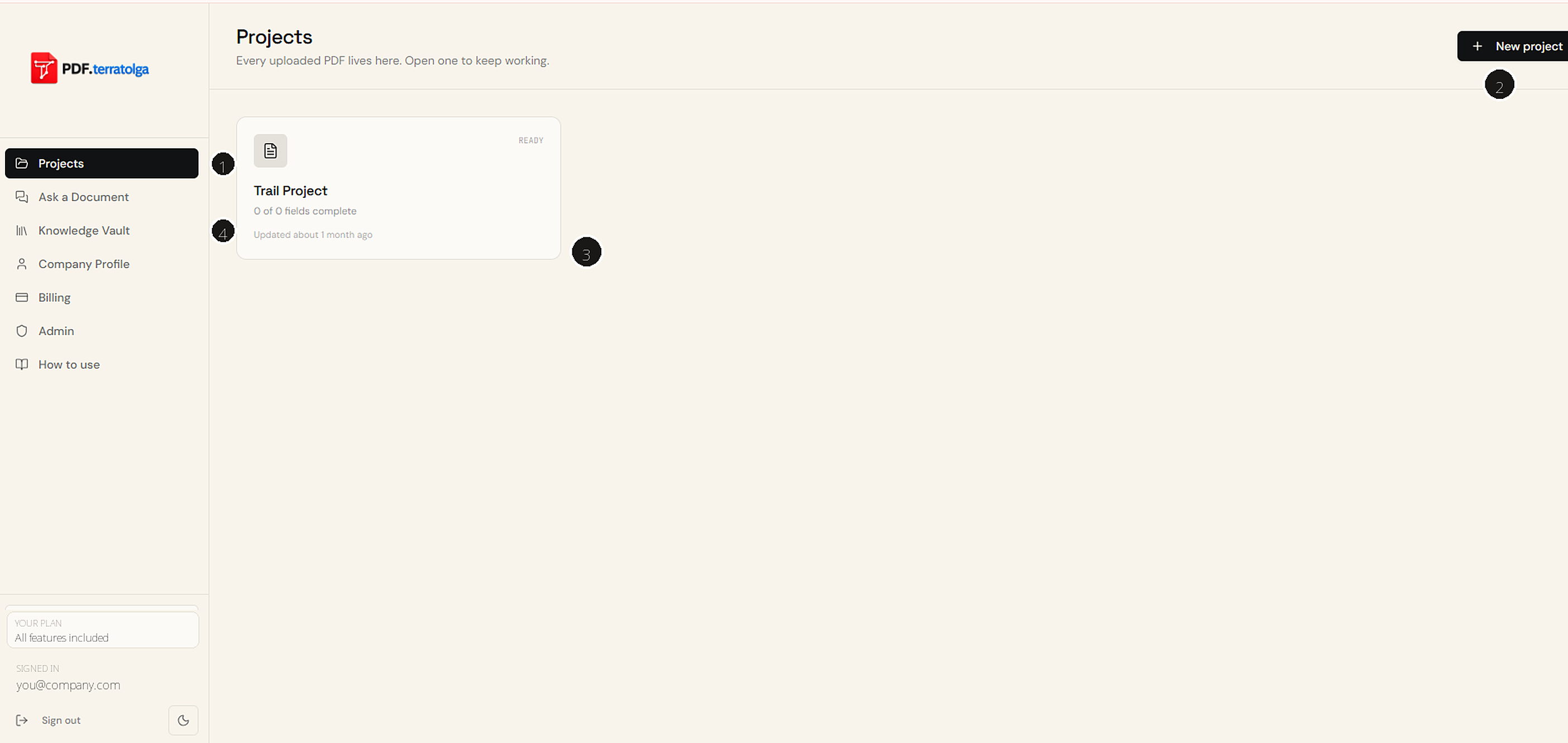
The Projects list. 1 Projects menu · 2 New project · 3 a saved project · 4 Knowledge Vault. All names, emails and account details in these guides are placeholders. - 02
Move documents into an Assembly to rearrange
Assemblies combine, reorder, rotate, and merge multiple PDFs into one polished package.
- 2.1Open a project, then click New Assembly in the header.
- 2.2Add the documents you want in the package.
- 2.3Drag pages or whole documents to set the final order; rotate any page that came in sideways.
- 2.4Export the assembly as one flattened PDF when the order is right.
- 03
Use the AI Copilot
The Copilot rewrites, retones, and translates any text you have added to the page.
- 3.1Add text with the Text tool, or click a form field already on the page.
- 3.2The AI Writing Copilot opens on the right (4). If it is collapsed, click AI Copilot in the toolbar.
- 3.3Pick an action: rewrite, professional, technical, executive, government, shorten, expand, or fix grammar.
- 3.4Edit the suggestion in the box — it is always editable — then click Accept to place it, or Translate into 30+ languages first.
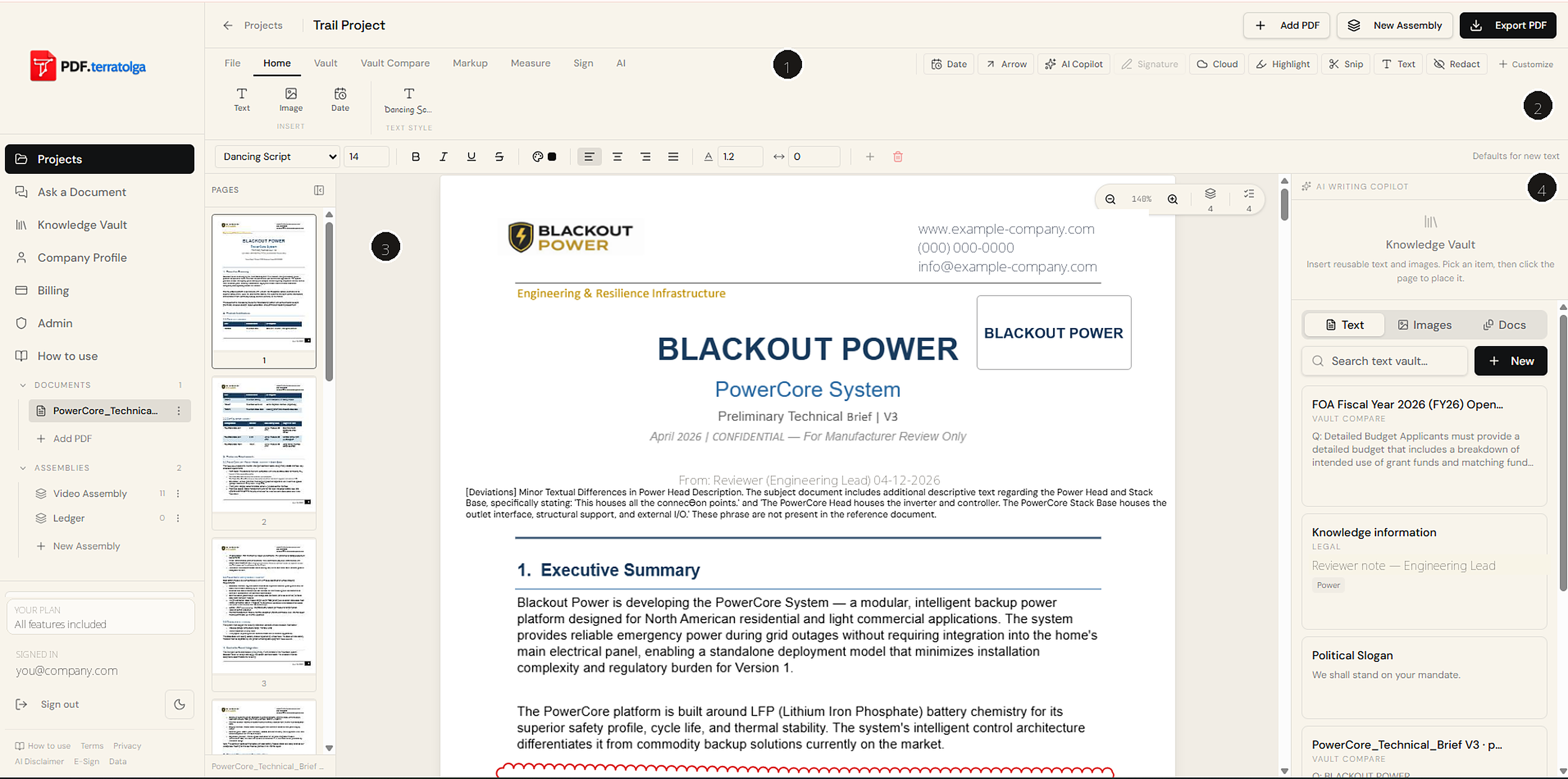
The editor. 1 toolbar tabs (File, Home, Vault, Vault Compare, Markup, Measure, Sign, AI) · 2 always-visible tools (Highlight, Snip, Text, Redact) · 3 page thumbnails · 4 AI Writing Copilot and Knowledge Vault. The document shown uses placeholder contact details. - 04
Add to the Knowledge Vault (text)
The Vault is your reusable library of approved language.
- 4.1Highlight text in a PDF.
- 4.2Right-click and choose Save selection to Knowledge Vault.
- 4.3Add a title, category, tags, and notes so you can find it later.
- 4.4Reuse it from the Vault rail or the Copilot's saved-answers library.
- 05
Snip an image to the Vault
Capture any part of a page — a valve, pump, symbol, logo, or detail drawing — as a reusable high-resolution image.
- 5.1Click Snip in the always-visible tool cluster (2).
- 5.2Drag a box over the region you want to capture.
- 5.3Name and tag it in the dialog, then save.
- 5.4It is now available in the Vault's Images tab for every document.
- 06
Insert from the Vault
Drop saved text or images straight onto the page.
- 6.1Open the Vault rail on the right and choose the Text or Images tab.
- 6.2Search by name, category, or tag.
- 6.3Click Insert — the item is armed.
- 6.4Click the spot on the page where it should land, then move or resize it like any element. It exports correctly in flattened PDFs.
- 07
Drawing & markup
Color-coded markup: rectangles, lines, arrows, highlights, freehand, and Bluebeam-style revision clouds.
- 7.1Open the Markup tab in the toolbar (1).
- 7.2Pick a shape, then drag on the page to draw it.
- 7.3Set stroke, fill, width, opacity, and dashed style in the properties row.
- 7.4Drag any markup to reposition, or select and delete it.
- 08
Redaction
Permanently black out sensitive content — exactly how the screenshots on this page were cleaned.
- 8.1Click Redact in the always-visible tool cluster (2).
- 8.2Drag a box over each piece of sensitive content — names, emails, phone numbers, prices.
- 8.3Repeat for every page that needs it; press Esc to put the tool away.
- 8.4Export the PDF: redactions are burned into the page, so the underlying text cannot be recovered.
- 09
Sign & translate
Sign in place and convert blocks of language when a document crosses borders.
- 9.1Open the Sign tab and draw or upload your signature.
- 9.2Click the page to place it, then resize it to fit the signature line.
- 9.3For other languages, select the text and use Translate in the Copilot.
- 10
Vault Compare — review against your Vault
Compare a region or a whole document against a trusted reference and work through anchored findings one by one.
- 10.1Open Vault Compare in the toolbar (1) and choose Region compare or Entire document compare.
- 10.2Pick the reference and a review profile, then run it.
- 10.3Edit, insert, save, or reject each finding in the Findings Panel — nothing changes automatically.
- 10.4See the detailed walkthrough further down this page.
- 11
Export
Export a pixel-perfect, flattened PDF with all markups, fills, images, and signatures embedded, visually identical to the original.
Ask any PDF a question, get a plain answer.
Ask a Document reads your PDF and answers questions in everyday language — and it always shows the exact section and page it used, so you can check it yourself. Great for long statutes, contracts, board rules, and manuals.
- 01
Open Ask a Document
Click Ask a Document in the left menu. You can also open it while editing — from the AI tab or File tab in the toolbar, or the Ask this Doc button — to ask about the PDF you already have open.
- 02
Choose the PDF
Upload a new PDF, or pick one you have already worked on. The first time, TerraTolga reads the document and indexes it by section — this takes a moment for large files. Keep the tab open until it finishes.
- 03
Type your question in plain English
For example: "What section covers reconsideration of a denied application?" or "What are the key deadlines?" There are also suggested questions you can tap to get started.
- 04
Read the answer with citations
The answer appears in the chat, grounded in the document, with Sources chips showing the section and page it came from. Ask follow-up questions any time — the conversation is saved with the document.
- 05
Save useful answers
Turn a helpful answer into reusable knowledge in your Knowledge Vault, so it is ready for your next document.
Turn your Knowledge Vault into a reviewer.
Vault Compare checks your working document against a trusted reference — a previous winning proposal, a standard contract, an approved procedure, or any saved Vault entry — and walks you through the gaps one finding at a time.
- 01
Snip the region to review
In the editor, choose the Vault Compare tool and drag a box over the part of the page you want reviewed. That region becomes the subject of the comparison.
- 02
Pick a reference
Choose what to compare against: a Text entry from the Vault, an Image reference, or a full Document (a Vault PDF page is rasterized and compared visually).
- 03
Choose a review profile
Pick the lens — general review, RFP/proposal compliance, education/answer-key, engineering, or legal. The profile tunes how findings are framed.
- 04
Run the comparison
TerraTolga returns a neutral summary plus anchored findings — each tagged Missing, Deviation, Strength, or Feedback, with the exact reference text it was compared against. Nothing is ever changed automatically.
- 05
Review in the Findings Panel
The pinnable, minimizable panel lists every finding with a status: Pending, Accepted, Saved, or Rejected. Work through them while still interacting with the PDF.
- 06
Edit, then insert
Every recommendation is fully editable before and after insertion. Insert into PDF drops it onto the page as standard, editable document text — click in to reword, add detail, or reformat.
- 07
Auto-advance through findings
Inserting marks a finding Accepted and automatically advances to the next pending one, so you can review a long list rapidly without losing your place.
- 08
Save reusable knowledge
Save any finding to the Vault as a reusable Q&A entry. Over time your Vault gets smarter and every future comparison benefits.
Review an entire document, end to end.
For long proposals, contracts, procedures, and answer keys, use Compare docs in the editor toolbar. Instead of snipping a region, you pick two whole documents and TerraTolga compares them using their extracted text — surfacing the same anchored Missing / Deviation / Strength / Feedback findings in the Findings Panel.
- 1.Pick a source and a comparison from any of four places: this project's Documents, Assemblies (buckets you've built), Vault reference PDFs, or Vault text entries.
- 2.Choose a review profile and run the comparison — TerraTolga reads the whole document, not just the first page.
- 3.Review, edit, insert, save, or reject each finding exactly like region compare. Best for text-based PDFs; scanned drawings should use region compare.